My Fix for “Connection timed out: getsockopt” in Minecraft LAN Games
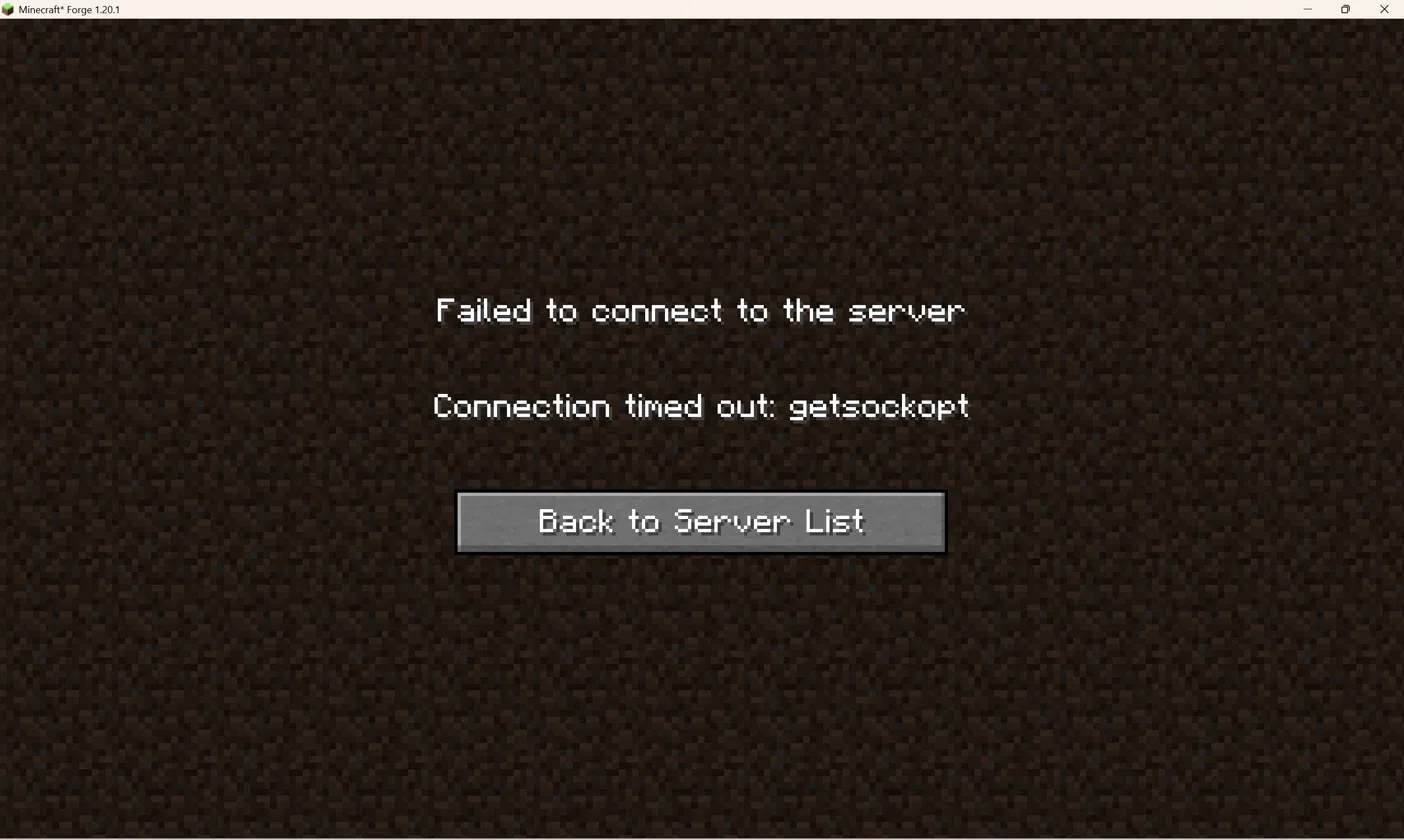
My two sons wanted to play Minecraft together on their laptops. One of them started a world (we're on Forge 1.20.1) and opened it to LAN. The other one could actually see the world listed under “Scanning for games on your local network”, but every time he tried to join, it would just fail.
I tried the following but these did NOT work for me:
- Joining the LAN world from the server list.
- Using Direct Connection with the host laptop's IPv4 address and port (e.g.
192.168.1.187:53935). This used to work for us, but only in the other direction. My younger son's laptop could connect to his older brother's laptop this way just fine. This time around, it was my older son's laptop trying to connect to his younger brother's laptop, and that's when it failed with a “Failed to connect to the server – Connection timed out: getsockopt” error. - Pinging the host laptop from the other laptop. Ping just timed out too.
The weird part was that the world showed up in the list, but we couldn't connect to it. Turns out those are two different things. The host laptop sends out a broadcast saying “hey, I'm hosting a world here”, and that's outgoing traffic, so it gets through just fine. But joining the world means the other laptop has to connect into the host laptop, and that incoming traffic was being blocked.
In my case, the culprit was Windows Firewall on the host laptop. These are the steps I took to fix it, all on the laptop hosting the world:
- Set the network to Private. Go to Settings → Network & internet → Wi-Fi → click on the network you're connected to → set Network profile type to Private. On a Public network, Windows blocks pretty much all incoming connections.
- Fix the Java firewall rules. Press Win+R, type
wf.mscand hit Enter. Click on Inbound Rules and look for entries named “Java™ Platform SE binary” or javaw. There may be several of them. If any have a red “blocked” icon, delete them or change them to Allow. I found two entries for javaw and simply deleted them.
The Java rules were probably the main issue. When you first open a world to LAN, Windows pops up a firewall prompt. If that gets dismissed (or a kid clicks Cancel 😅), Windows quietly creates rules that block Java, and you never see the prompt again.
After the two fixes listed above, I restarted Minecraft on my younger son's laptop and got the Windows Firewall prompt for Java to allow incoming connections. I clicked allow. After that, my son was able to join his brother's world and they were off building together.
That also explains why it only worked one way. My older son's laptop had probably been set up to allow the connection at some point, but my younger son's laptop never was, so it was the first time anyone tried to connect into it.
Side note: the ping failing didn't really mean anything. Windows blocks ping by default, so don't rely on it to test your connection.
Hope this post helps someone else. Happy gaming!
Tags: #Minecraft #Fix